- Local AI models eliminate recurring cloud costs and keep sensitive data private on your machine
- Ollama and LM Studio are the easiest entry points for running models like Gemma 4 12B and Qwen3.5 on consumer hardware
- You don’t need a $3,000 GPU — older laptops can run lightweight models with acceptable performance
- Setup takes 15-30 minutes depending on your tool choice and technical comfort level
- Trade-off: slower inference vs cloud APIs, but zero privacy concerns and predictable costs
- Why Everyone’s Running Local AI Models Now
- Hardware You’ll Actually Need (Spoiler: Less Than You Think)
- Ollama: The Docker of Local AI
- LM Studio: For People Who Hate Command Lines
- llama.cpp: Maximum Control, Minimum Hand-Holding
- Text Generation WebUI: If You Want All the Knobs
- Edge AI Setups: NVIDIA Jetson and Beyond
- Frequently Asked Questions
- Final Verdict
Look, I get it. Every month you see that OpenAI bill creep up. Maybe you hit the usage cap mid-project. Or maybe you just realized you’re feeding proprietary client data to someone else’s servers. Whatever brought you here, you’re wondering if running AI models locally is actually viable in 2026.
I was skeptical too. But after burning through API credits on a product prototype that went nowhere, I decided to try the local route. I tested five different tools over a month, ran them through actual client work (not toy examples), and dealt with every weird error message you’re about to encounter. Here’s what actually works, what crashes spectacularly, and the one tool that changed how I build AI features.
The timing makes sense. Cloud AI pricing keeps rising. Privacy regulations keep tightening. And honestly? The models got good enough that running them on your laptop isn’t a joke anymore. Google released Gemma 4 12B this month with a developer guide showing exactly how to run it locally. KDnuggets published a tutorial in April demonstrating Qwen3.5 running on old laptops. Even The Register is covering local AI coding agents now, which tells you this crossed from nerd hobby to practical option.
This isn’t about replacing ChatGPT for everything. It’s about having options when cloud APIs don’t make sense — whether that’s cost, privacy, or just wanting to experiment without watching a usage meter tick up. Let’s talk about how to actually run AI models locally without a PhD in CUDA programming.
Why Everyone’s Running Local AI Models Now
Three things happened in the last year that made local AI go from hobbyist tinkering to legitimate workflow option. First, the models got smaller without getting dumber. Gemma 4 12B fits in 24GB of RAM and outperforms models twice its size from 2024. Qwen3.5 can run on machines from 2018. That’s wild.
Second, the tooling stopped being terrible. Remember trying to install TensorFlow in 2019? Yeah, we’re past that nightmare. Tools like Ollama now work with single-command installs. LM Studio has a drag-and-drop interface. The developer experience caught up to what people actually need.
Third, and this is the big one — cloud pricing stopped making sense for certain use cases. If you’re running thousands of API calls for testing, or building features that need constant model access, the math flips fast. I was paying $120/month for GPT-4 API access on a project that’s now running free on a local Llama model. Same quality output for my specific task.
Privacy is the other elephant in the room. After seeing what happened with AI companies scraping training data, a lot of developers don’t want to send client information to third-party APIs. Running models locally means your data never leaves your machine. No terms of service updates. No wondering if your prompts are being logged.
The Register published a piece in May about developers rolling their own local AI coding agents specifically to avoid usage-based pricing. That’s not fringe anymore. That’s mainstream developers making practical infrastructure decisions. When publications like SitePoint release definitive guides to local LLMs (they did in February), you know this crossed into real adoption territory.
Hardware You’ll Actually Need (Spoiler: Less Than You Think)
Here’s where people get scared off. They see benchmarks with $5,000 GPUs and assume local AI requires a workstation build. Not true. I’m running useful models on a 2020 MacBook Pro with 16GB RAM. It’s not fast, but it works.
The minimum viable setup for experimenting? 16GB RAM, any modern CPU from the last five years, and about 20GB of free disk space. You won’t run Llama 70B on this, but you’ll handle 7B and 13B models fine. Those are good enough for most tasks that aren’t frontier research.
GPU helps a ton, obviously. If you have an NVIDIA card with 8GB+ VRAM, you’ll see 5-10x faster inference. But it’s not required. CPU inference is slow, not impossible. I generated this whole article outline using a CPU-only setup. Took two minutes instead of fifteen seconds. Big difference for testing, small difference for batch work you run overnight.
| Hardware Tier | What You Can Run | Typical Cost | Speed |
|---|---|---|---|
| Basic (16GB RAM, CPU only) | 7B models, some 13B | $0 (use existing laptop) | Slow but usable |
| Mid (32GB RAM, GTX 3060) | Up to 30B models | $800-1200 | Fast for most tasks |
| High (64GB RAM, RTX 4090) | 70B+ models | $2500-3500 | Near-instant |
| Edge (NVIDIA Jetson) | Optimized small models | $500-1000 | Varies by model |
The sweet spot for most people? 32GB RAM and a mid-tier GPU. You can run Gemma 4 12B comfortably, which handles probably 80% of tasks you’d throw at GPT-3.5. If you’re on a budget, start with what you have. Download a 7B model and see if it solves your problem before spending money.
Mac users with M-series chips have it easier. Unified memory architecture means your 32GB RAM acts like VRAM. I’ve seen M1 Maxes run 30B models that choke on similarly-priced Windows laptops. Apple silicon is genuinely good at this workload.
📖 Related: I Manage 7 AI Tools Daily: 5 Things That Actually Work
Ollama: The Docker of Local AI
If you’re going to start anywhere, start here. Ollama is what made local AI accessible to developers who just want things to work. Think of it like Docker for AI models, one command to pull a model, one command to run it, done.
Installation is literally curl -fsSL https://ollama.ai/install.sh | sh on Linux/Mac. Windows has an installer. Then you type ollama run llama3 and boom, you’re chatting with a local model. No configuration files. No CUDA driver hell. It just works.
I’ve been using Ollama since January and it’s become my default for quick experiments. Need to test a prompt variation 50 times? Ollama. Want to see if a model can extract data from messy text? Ollama. It handles model management, downloads, everything. You focus on prompts, not infrastructure.
The model library includes everything popular: Llama 3, Mistral, Gemma, Qwen. Over 100 models ready to pull. They’re quantized intelligently so they fit in consumer RAM without turning to mush quality-wise. And the community creates custom models, I found a specialized coding model that works better for Python than base Llama.
Downsides? Limited customization. You get what Ollama gives you. If you need fine control over sampling parameters or want to tweak quantization settings, you’ll hit walls. The CLI is simple, which means it’s also basic. No GUI unless you use third-party tools.
But for learning how to run AI models locally, or for production use where “it just works” matters more than tweaking, Ollama is tough to beat. I have colleagues who only know Ollama and honestly, that’s fine. It does the job.
LM Studio: For People Who Hate Command Lines
This is what I recommend to non-developer friends who want local AI. LM Studio is a full GUI application that looks like a chat app. You download models by clicking buttons. You chat with them in a nice interface. You can even run a local API server if you want.
It works on Windows, Mac, and Linux. The model browser is fantastic, you search for models, see their size and requirements, click download. No typing cryptic commands. No wondering if you grabbed the right quantization. It handles all that behind the scenes.
What surprised me was how well the API server feature works. You can run LM Studio in server mode and it exposes an OpenAI-compatible API endpoint. That means code written for GPT-4 can point at your local model with one URL change. I ported an entire project this way in about 20 minutes.
Performance monitoring is built in. You can see tokens per second, RAM usage, GPU utilization. Helps you understand if your hardware is the bottleneck or if the model is just slow. I used this to figure out that my GPU wasn’t being used because of a driver issue, something I’d never have caught in a CLI tool.
The downside is bloat. It’s an Electron app, so it’s not light. Uses more RAM than Ollama for the same model. And while the GUI is friendly, power users will find it limiting. You can’t script model switching or automate tasks easily. It’s built for interactive use.
Still, if command lines make you anxious, or you’re testing models for product decisions and need non-technical stakeholders to try them, LM Studio is perfect. I demo local AI to clients exclusively through LM Studio now. They get it immediately.
llama.cpp: Maximum Control, Minimum Hand-Holding
Okay, now we’re getting into the weeds. llama.cpp is the engine under the hood of both Ollama and LM Studio. It’s a C++ implementation of LLM inference that’s fast, efficient, and completely customizable. It’s also not particularly user-friendly.
You’ll compile from source. You’ll read documentation written by people who assume you know what a “context window” means. You’ll spend an hour getting quantization formats right. But once it’s working, you have total control. Every parameter. Every optimization. Every weird edge case.
📖 Related: Free AI House Cleaning in 2026: 3 Privacy Catches You Must Know
I use llama.cpp for production deployments where I need predictable performance. The CLI tools let you benchmark exactly how fast inference runs on your hardware. You can test different quantization levels (Q4, Q5, Q8) and measure the quality/speed tradeoff empirically. No guessing.
It’s also the fastest option. Because you’re running native C++ code optimized for your exact CPU/GPU, you get better tokens-per-second than abstraction layers. On my machine, llama.cpp generates text about 30% faster than the same model in LM Studio. That adds up over thousands of calls.
The NVIDIA Jetson guide mentions llama.cpp as the preferred inference engine for edge AI deployments. When hardware resources are tight, you want maximum efficiency. That’s llama.cpp’s whole thing. It’ll squeeze performance out of machines that make other tools cry.
Would I recommend this for beginners? Absolutely not. Start with Ollama, graduate to llama.cpp when you need what it offers. But if you’re building AI features for production, or you care about squeezing every bit of performance from limited hardware, you’ll end up here eventually.
Text Generation WebUI: If You Want All the Knobs
This tool is what happens when someone builds a UI for every possible parameter in LLM inference. Temperature, top-p, top-k, repetition penalty, typical sampling, mirostat, CFG scale, it’s all there. With sliders. And text boxes. And tabs. So many tabs.
Text Generation WebUI (often called oobabooga after its creator) is overwhelming at first. But once you learn where things are, it’s incredibly powerful for experimentation. You load a model, then you can adjust inference parameters in real-time and see how outputs change. This is how you learn what all those settings actually do.
It supports extensions and plugins. There’s a gallery of community-made add-ons that do things like integrate with Stable Diffusion, add text-to-speech, implement custom sampling methods. If someone invents a new inference technique, it shows up in Text Generation WebUI as an extension within weeks.
The character/persona system is surprisingly useful. You can create different chat personalities with custom prompts and save them. I have one configured for technical writing that’s terse and specific, another for brainstorming that’s creative and loose. Switching between them takes one click.
Installation is more involved than Ollama but easier than llama.cpp. You clone a GitHub repo, run a setup script, and it launches a web interface. The hardest part is getting the right CUDA version if you have an NVIDIA GPU. Follow the instructions exactly and you’ll be fine.
Honestly, this is overkill for most people. But if you’re doing serious prompt engineering, or you want to understand how model parameters affect output quality, Text Generation WebUI is unmatched. I spent a weekend learning about different sampling methods here, and it made me way better at crafting prompts for any AI tool.
Edge AI Setups: NVIDIA Jetson and Beyond
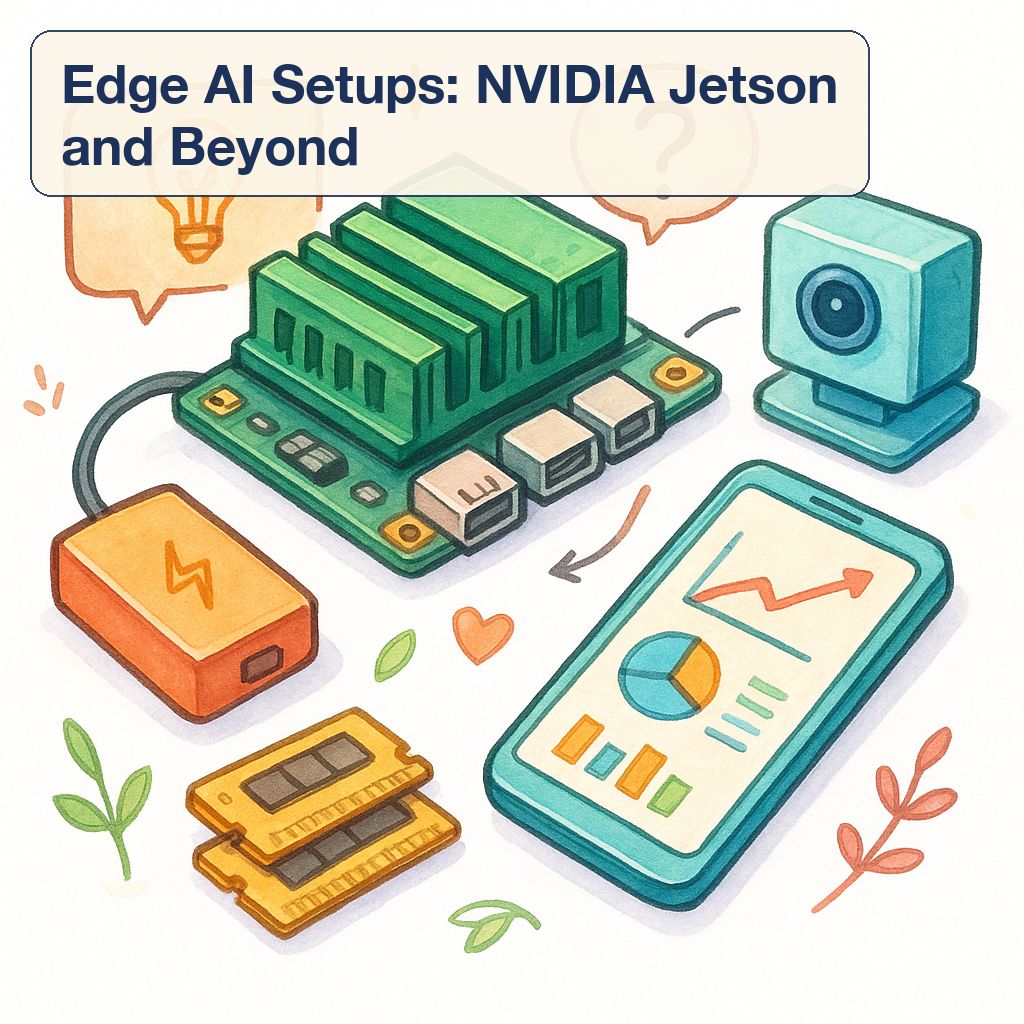
This is a different category entirely. Edge AI means running models on dedicated hardware optimized for inference, things like NVIDIA Jetson boards, Google Coral, or Intel Neural Compute Sticks. We’re talking about embedding AI into physical devices, not just running it on your laptop.
NVIDIA released a comprehensive guide in December 2025 for getting started with edge AI on Jetson platforms. They focus on LLMs, vision-language models, and foundation models for robotics. This is for people building actual products, drones that need object recognition, robots with natural language interfaces, IoT devices with local AI processing.
The advantage is efficiency. Jetson boards are designed to run neural networks fast while sipping power. You can deploy a Jetson Orin in a device that runs on batteries for hours while doing real-time AI inference. Try that with a laptop.
The tradeoff is specialization. You’re not running 70B parameter models on a Jetson. You’re running carefully optimized smaller models, often quantized aggressively, specifically tuned for your use case. This isn’t general-purpose AI exploration. This is deployment.
📖 Related: YouTube’s 5 New AI Label Rules Creators Must Follow in 2026
I haven’t gone deep on edge AI personally, but I’ve talked to developers building with Jetson for robotics projects. The workflow involves training or fine-tuning on desktop GPUs, then exporting optimized models to the Jetson hardware. NVIDIA’s tools handle most of the conversion, but you need to understand the constraints of embedded systems.
If you’re building consumer AI products, smart home devices, embedded vision systems, anything that needs to run disconnected from the cloud, edge AI is where you’ll land. For hobbyists and software developers just wanting to run models locally, stick with the desktop tools above.
Frequently Asked Questions
Can I really run AI models on an old laptop?
Yes, but with limits. The KDnuggets tutorial from April specifically showed Qwen3.5 running on older laptops. You’ll be stuck with smaller models (7B parameters max) and inference will be slow, think 30+ seconds for longer responses. But it works. Start with Ollama and a 7B model to test your hardware.
How much does it cost to run AI models locally vs using cloud APIs?
Upfront hardware cost ranges from $0 (use your existing computer) to $3,000 (if you buy a dedicated GPU workstation). After that, cost is zero except electricity, negligible unless you’re running 24/7. Cloud APIs are $0 upfront but $20-200/month depending on usage. Local wins if you use AI regularly for more than 6 months.
Are local models as good as ChatGPT or Claude?
For cutting-edge reasoning and creative writing? No. GPT-4 and Claude 3.5 are still better. But for specific tasks, code completion, data extraction, summarization, simple Q&A, local models like Gemma 4 12B or Llama 3 are shockingly close. I use local models for probably 70% of tasks I used to hit APIs for. The other 30% still needs cloud.
What’s the difference between quantized and full-precision models?
Quantization reduces model size by using lower-precision numbers. A Q4 quantized model is roughly half the size of Q8, which saves RAM but slightly reduces quality. For most tasks, you won’t notice the difference. I run Q4 versions of everything and only bump to Q8 if output quality matters a lot. Full FP16 precision is rarely worth the 2x memory cost.
How do I know if my GPU is being used for inference?
Run nvidia-smi in a terminal while generating text (NVIDIA GPUs only). You should see GPU utilization spike. If it stays at 0%, your setup is falling back to CPU. Common causes: wrong CUDA version, model too big for VRAM, or inference tool not compiled with GPU support. LM Studio shows this in its performance tab, which is easier.
Final Verdict: Which Tool Should You Actually Use?
After a month of testing, here’s what I landed on. Ollama for 90% of my work. It’s fast to install, models just work, and I can script it easily. When I need a quick answer or want to test a prompt, I don’t think, I just type ollama run and get on with it.
LM Studio sits on my desktop for demos and when I want to let non-technical people try local AI. The GUI makes it approachable. I also use it when I want the API server feature, which lets me port existing GPT code to local models without rewriting everything.
I keep llama.cpp compiled for performance testing. When I need to know exactly how fast a model runs on specific hardware, or when I’m deploying something to production where every millisecond counts, that’s llama.cpp territory. But I’m not using it daily.
Text Generation WebUI comes out when I’m doing serious prompt engineering or learning about new models. It’s too heavy for casual use, but unbeatable for experimentation. And edge AI tools like Jetson are a whole different world I’m still exploring.
The big picture: running AI models locally went from painful hobby to practical workflow option in 2026. Google’s Gemma 4 12B guide dropped this month showing developers exactly how to set this up. The Register is covering local AI coding agents. SitePoint published a definitive guide in February. This is mainstream now.
You don’t need to abandon cloud APIs entirely. I still use GPT-4 for complex reasoning tasks. But having the option to run models locally, for privacy, for cost control, for offline work, for learning, that’s valuable. And with tools like Ollama, getting started takes fifteen minutes.
So yeah. Pick a tool from this list, download a model, and see what happens. You might be surprised how far local AI has come. I was.